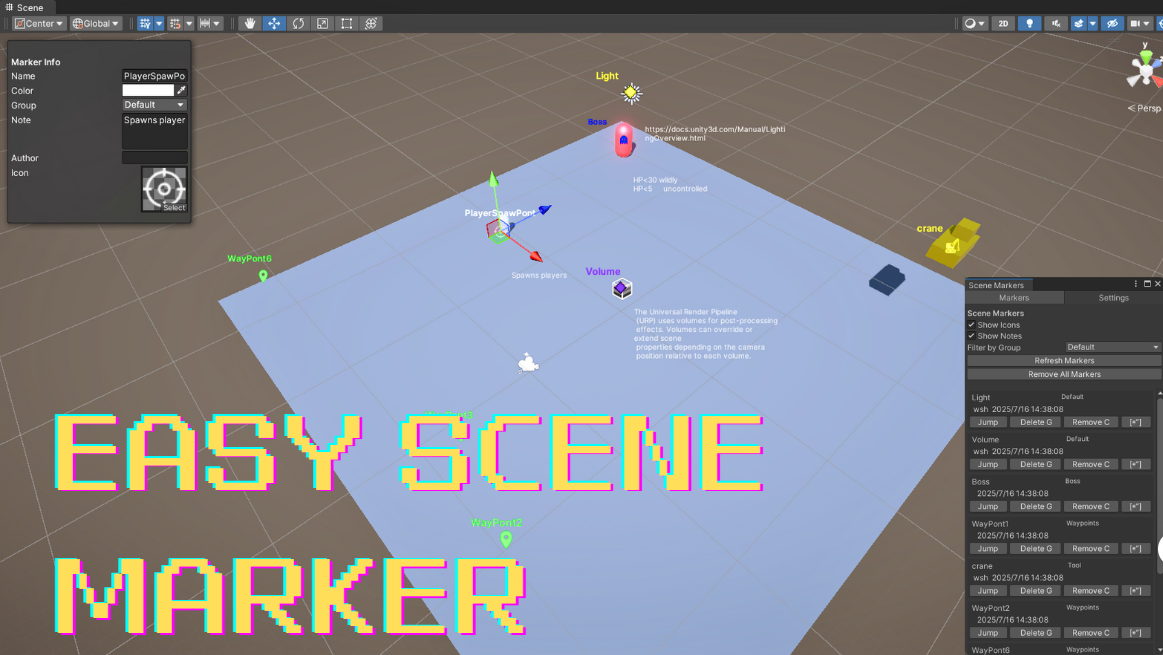
Scene Marker is a development tool designed for Unity scenes, allowing developers to create, annotate, organize, and navigate visual markers in the scene. It is ideal for medium to large projects, team collaboration, and educational presentations.
🔧 Feature List
Feature Name
Description
📍 Add Scene Markers
Ctrl+Right-click in the Scene view to add a marker. Supports custom color, author, group, and more.
🎨 Custom Color & Icon
Each marker supports a built-in or user-defined icon and color to enhance visual identification.
✏️ Info Display
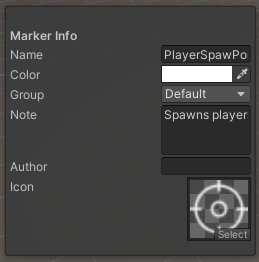
All markers are always visible in the scene. Selecting a marker reveals its name, note, author, etc.
🔎 Distance-Based Scaling
Icon and label sizes automatically adjust based on distance to the Scene camera. Notes are hidden at a distance.
🧭 Navigation
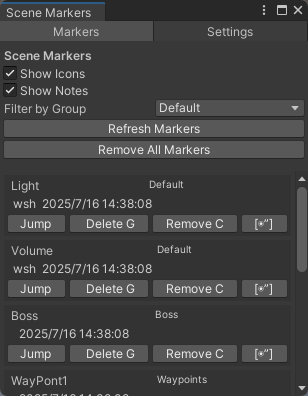
Click the “Jump” button in the manager window to focus the Scene view on the selected marker.
🧹 Deletion & Undo
Supports both script-only removal and full GameObject deletion, both with undo (Ctrl+Z) support.
📸 Scene Screenshot
Captures a screenshot of the current Scene view and saves it under the StreamingAssets/Screenshots directory.
📄 Markdown Export
Exports all markers and screenshots as a Markdown document for easy documentation and collaboration.
⚙ Configurable Settings
Adjust icon size range, note visibility distance, and more in the “Settings” tab.
🖥️ UI Overview
Main Window Tabs (Tools > Scene Marker Manager)
📍 Markers: Browse, jump to, delete, and capture marker screenshots.
⚙ Settings: Adjust visual display parameters like icon size and note visibility distance.
Marker:Setting:
📂 Files & Resource Paths
Screenshot Save Path: StreamingAssets/Screenshots/
Markdown Report Output: Selectable when exporting
📌 Quick Actions
Action
How to Use
Add Marker
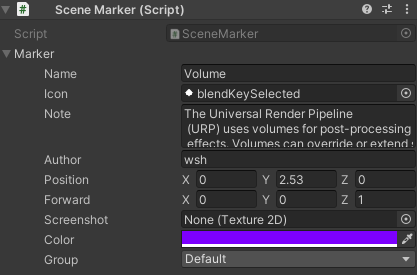
Ctrl + Right-click in the Scene view to add a SceneMarker component
Edit Marker
Via SceneMarker component in Inspector or the floating window in Scene
Jump to Marker
Click “Jump” in the Marker Manager window
Delete Marker
Use the “Delete G” (GameObject) or “Delete C” (Component) buttons
Export Report
Menu: Tools > Export Marker Markdown Report
🧠 Recommended Use Cases
Scene annotations and educational walkthroughs
Collaborative visual tagging of logic, design, or assets
Scene review and change documentation
Development of trigger points, navigation zones, or gameplay logic
 Setting:

评论
发表评论